- Everything happens on your iPhone
- No account, no sign-up
- No forced watermark
- Works offline
You take a screenshot to explain something, and then you stop. The amount is in the frame. The card number is in the frame. Someone's phone number is in the frame. So you crop it badly, or you send it anyway and hope nobody looks too closely.
Snaply is the step between the screenshot and the send. Cover what's private, draw attention to what matters, drop it in a frame that looks deliberate — and your image never leaves the phone while you do it.
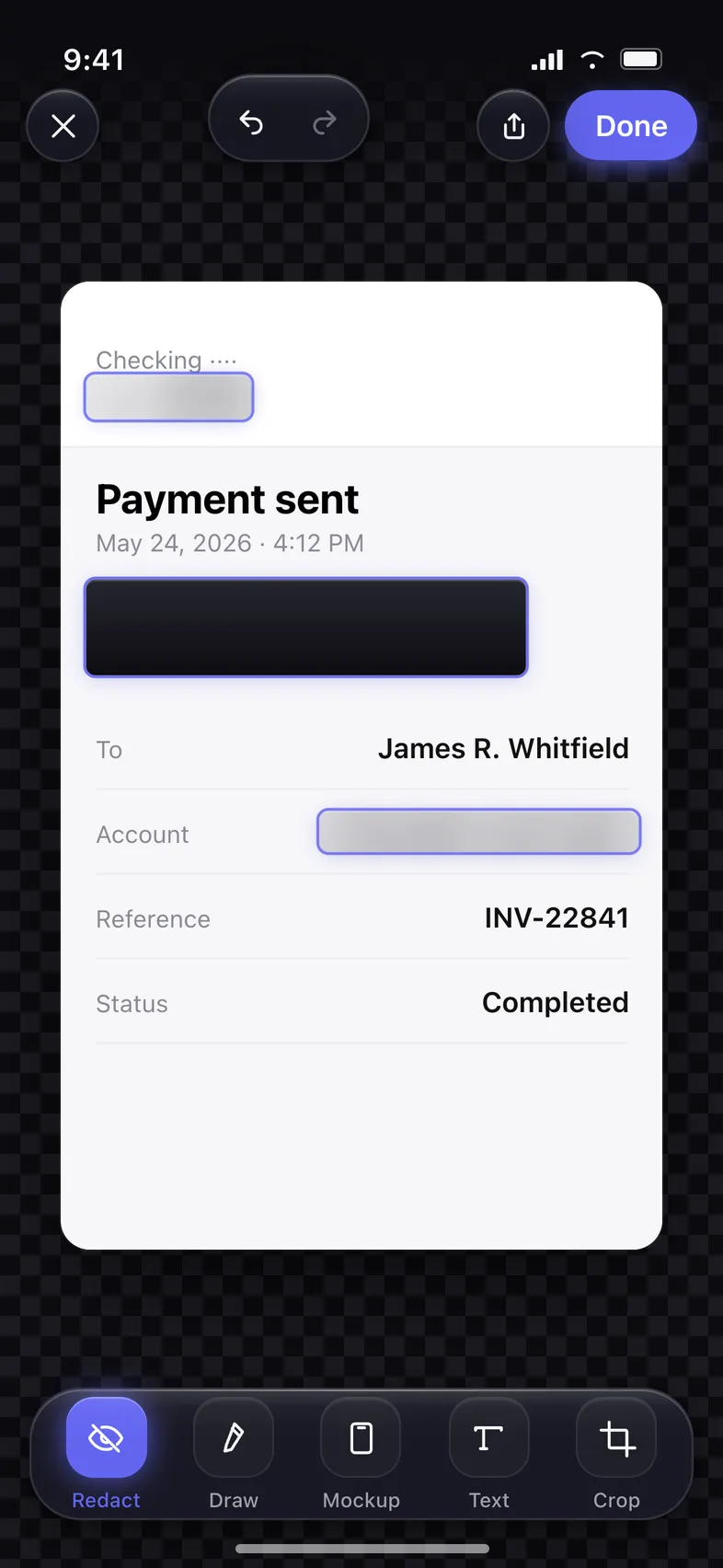
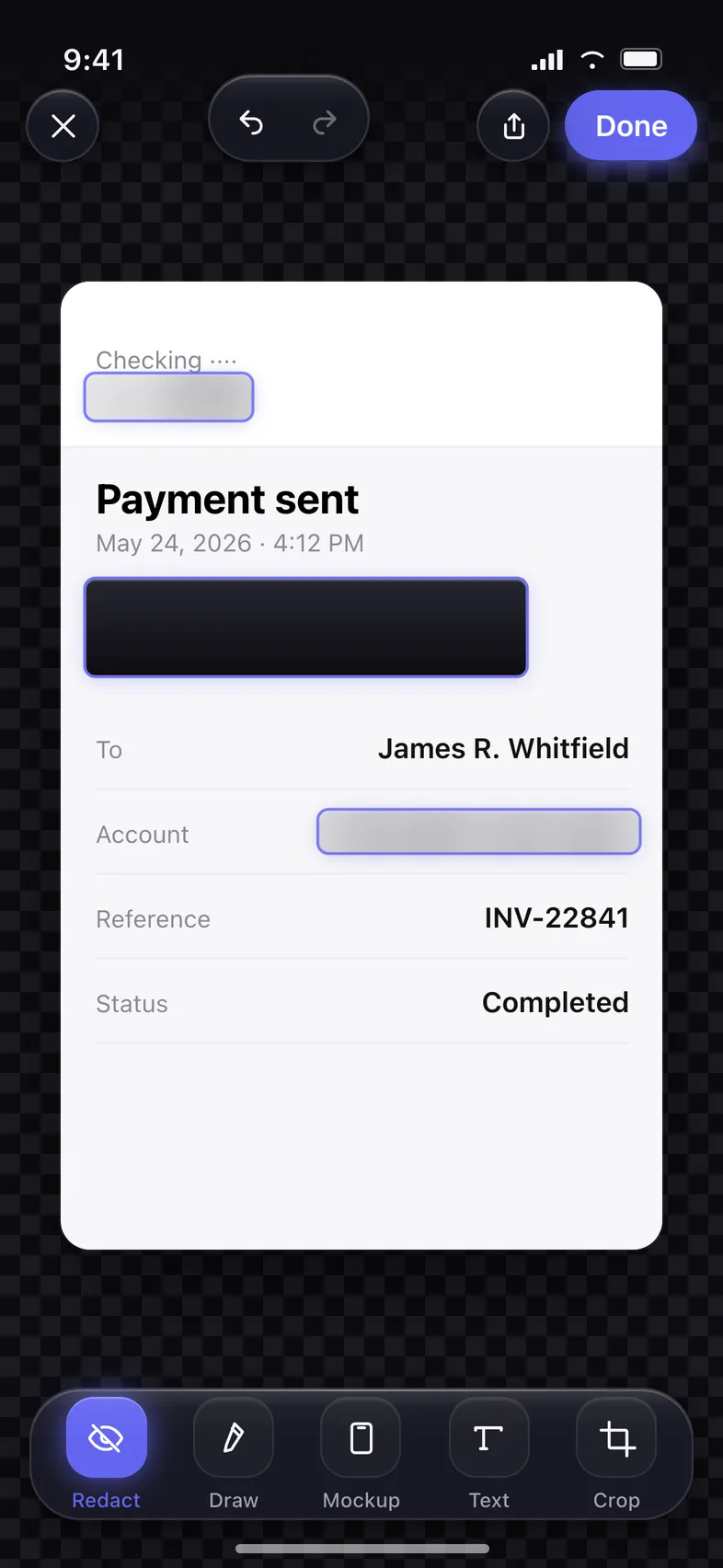
Hide what's private — in two taps
Drag over anything you don't want seen: a solid black bar, a blur, a pixel grid, or a blend that matches the surrounding colour. Snaply tells you which is which — the black bar is permanently baked into the pixels, while blur and pixelation are marked as partially reversible, so you always know what you're actually sending.
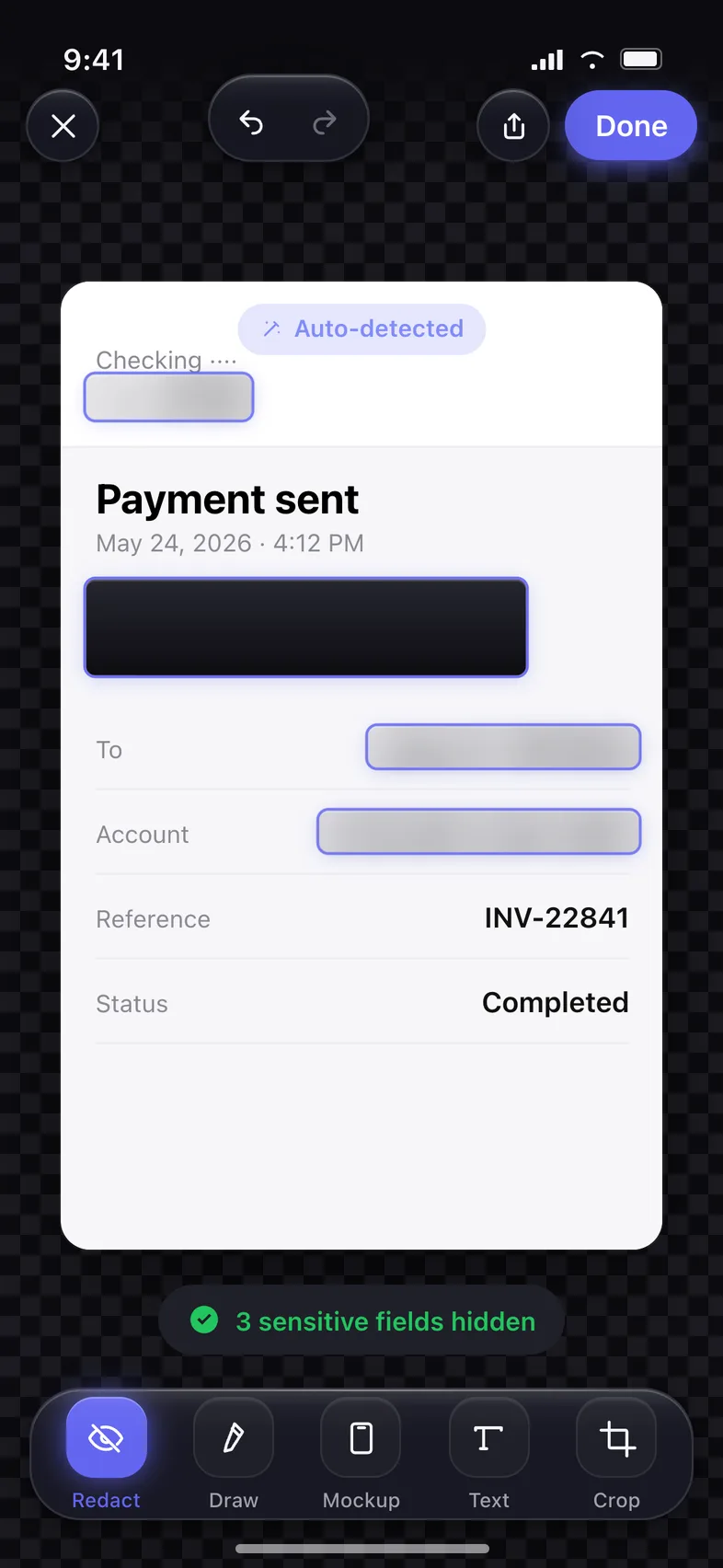
Magic finds the sensitive text for you
Tap Magic and Snaply reads the screenshot on-device, snaps bars onto every line of text it finds, and tells you how many fields it hid. Keep the ones you want covered, tap the rest away — no dragging pixel by pixel, and no image ever sent to a server to do it.
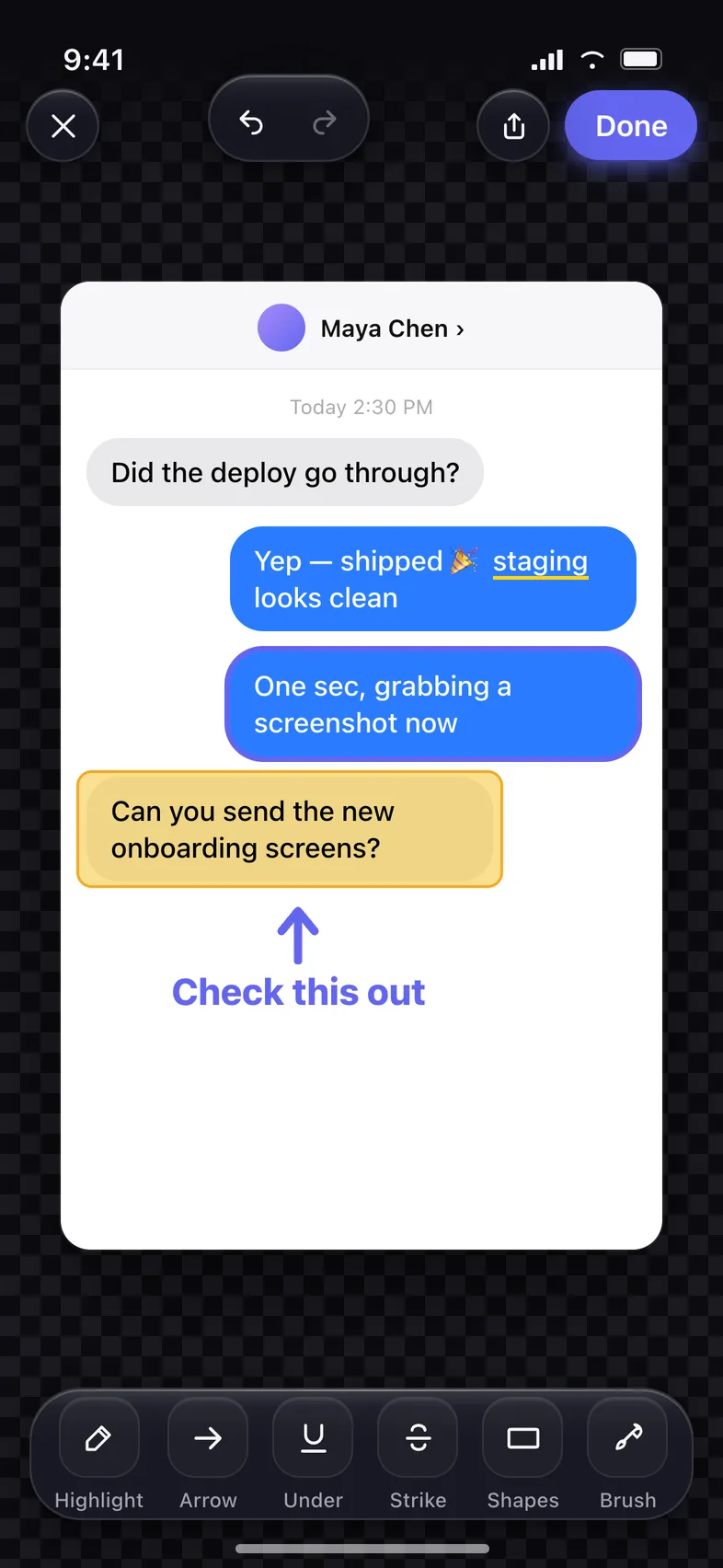
Point to exactly what matters
Highlight, arrow, underline, strikethrough, rectangle, oval, line and freehand brush, in any colour and thickness. Add text blocks in four typefaces, drag them where you want them, and crop or straighten the shot when you're done.
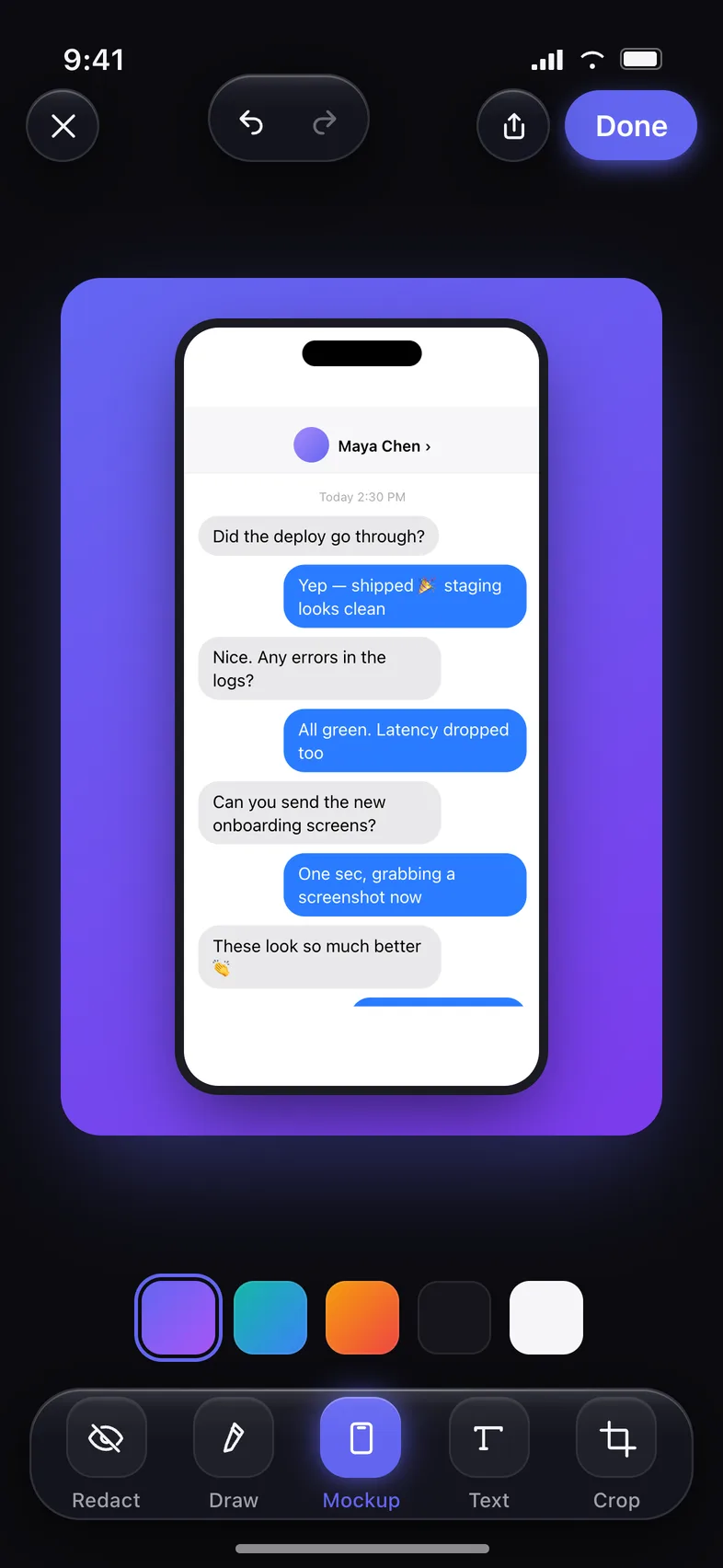
Make it look like you meant it
Drop the screenshot into an iPhone, iPhone SE, iPad Pro or browser frame, then set the background — seven gradients, dark, light, or transparent for a clean overlay. Shadow, corner radius and padding are sliders, so the result looks composed instead of pasted.
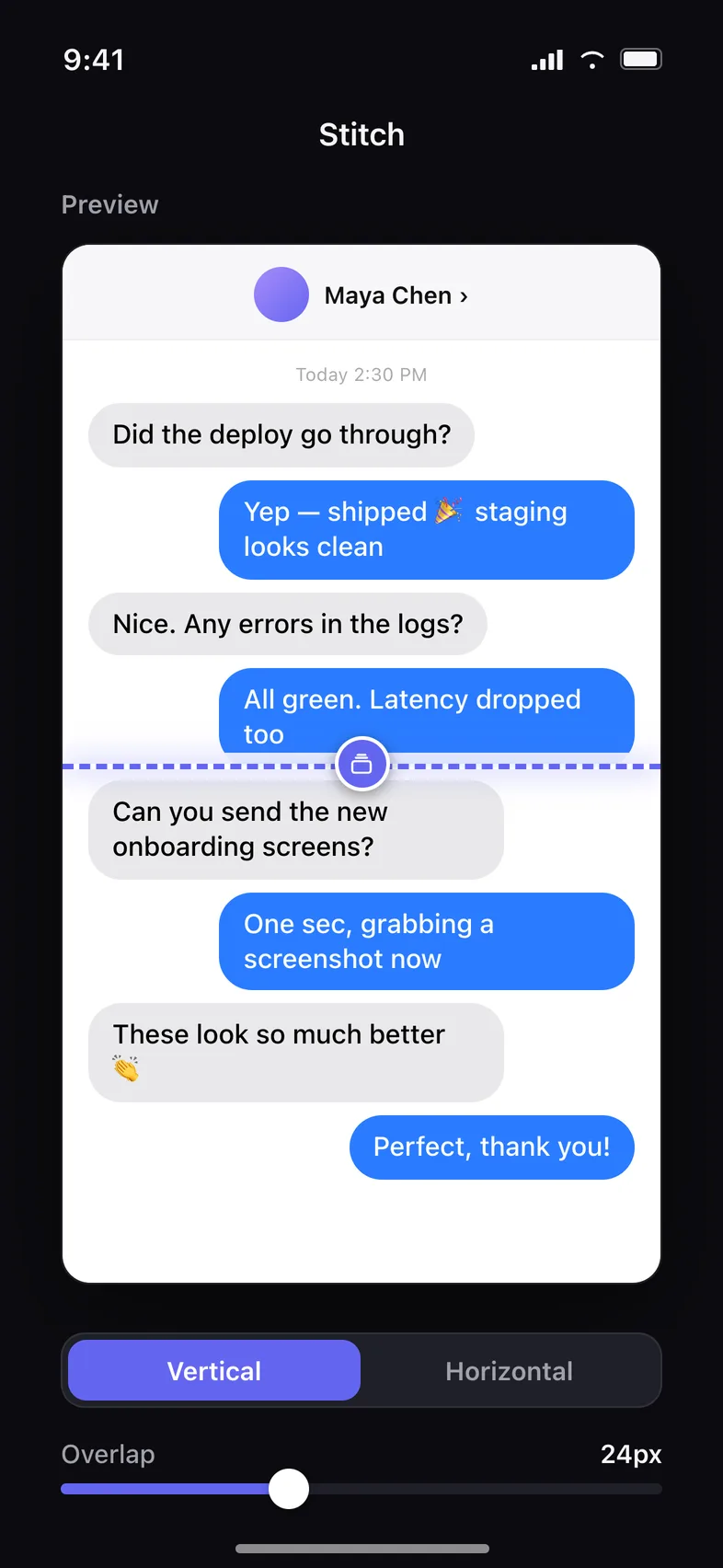
Merge a whole chat into one image
Pick two or more screenshots and Snaply finds the overlap itself, seam by seam — the repeated part of a chat is never the same height twice, so every join gets its own slider instead of one setting for the whole chain. When a seam is ambiguous Snaply says so rather than guessing. Vertical or horizontal, up to fifty screenshots, and you can slice the result back into parts for posting.
Composed for where it's going
Set a background — gradient, solid or a blurred copy of the shot itself — add padding and a shadow, and pick the shape it needs to be: 1:1, 4:5, 16:9 or 9:16 for stories. The canvas is built at that ratio and the screenshot is fitted inside, so Instagram never crops away the edge you were trying to keep.
The canvas changes, the screenshot never stretches.
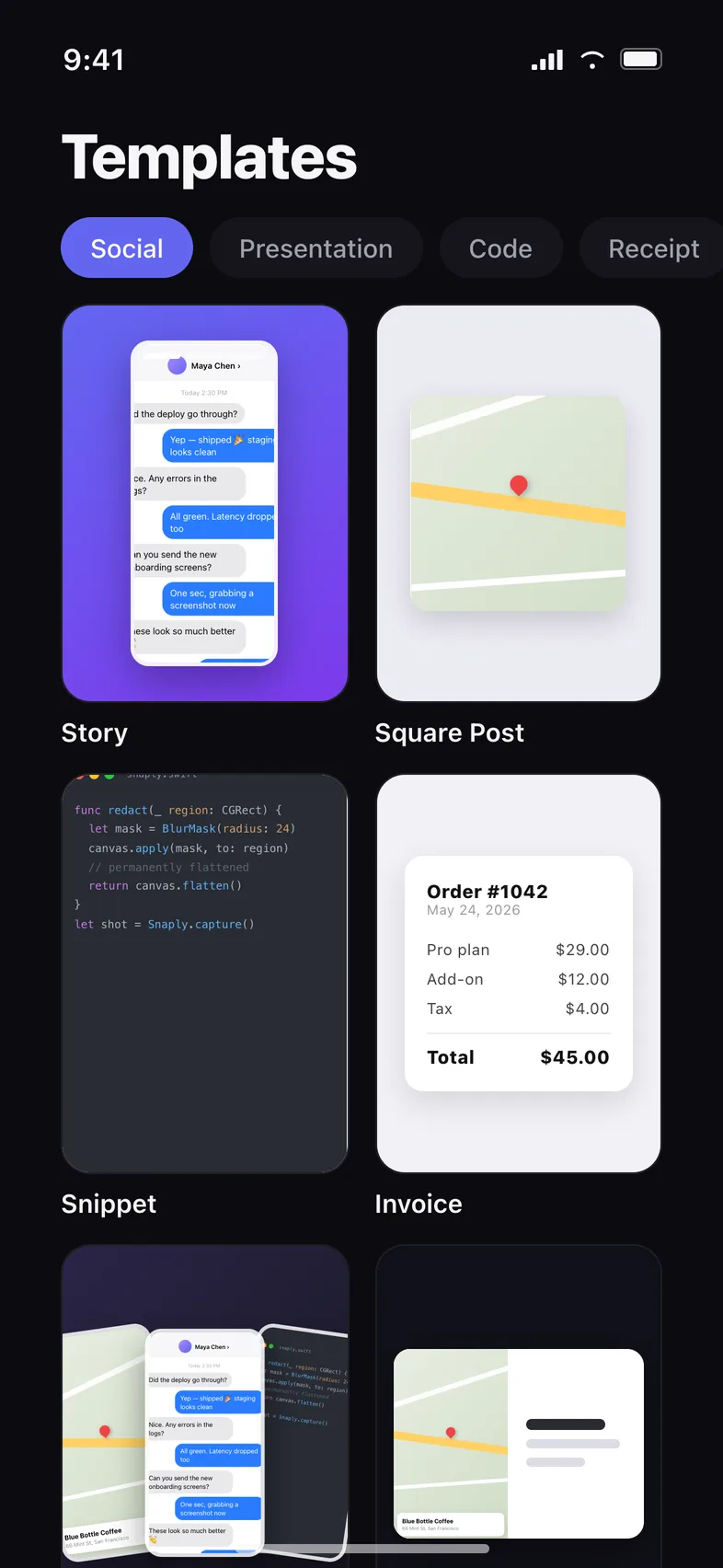
16 ready-made templates
Social, presentation, code and receipt layouts. Pick one and your screenshot is already composed for a story, a slide, a snippet or an invoice.
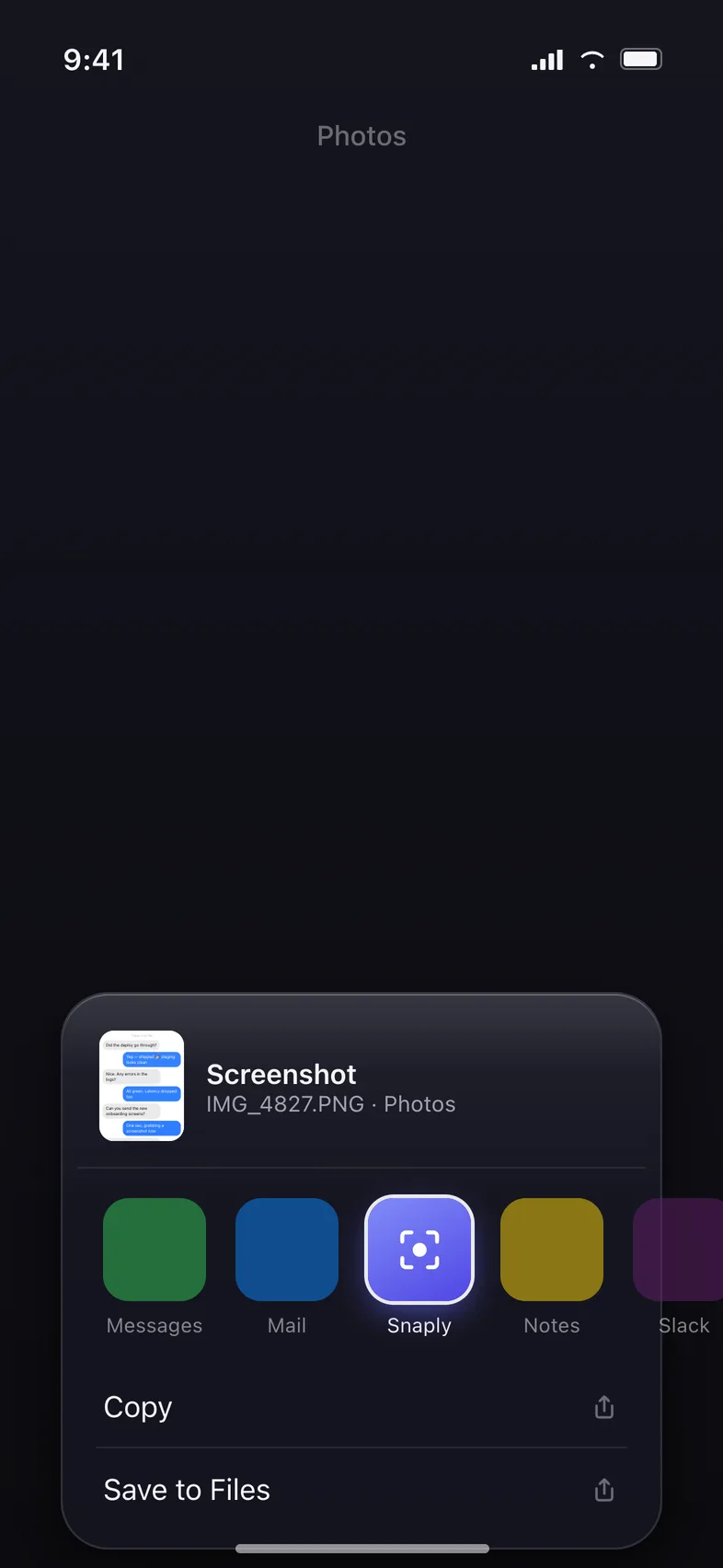
Right from the share sheet
Tap Share on any screenshot, choose Snaply, redact, draw, frame, save. You never have to open the app.
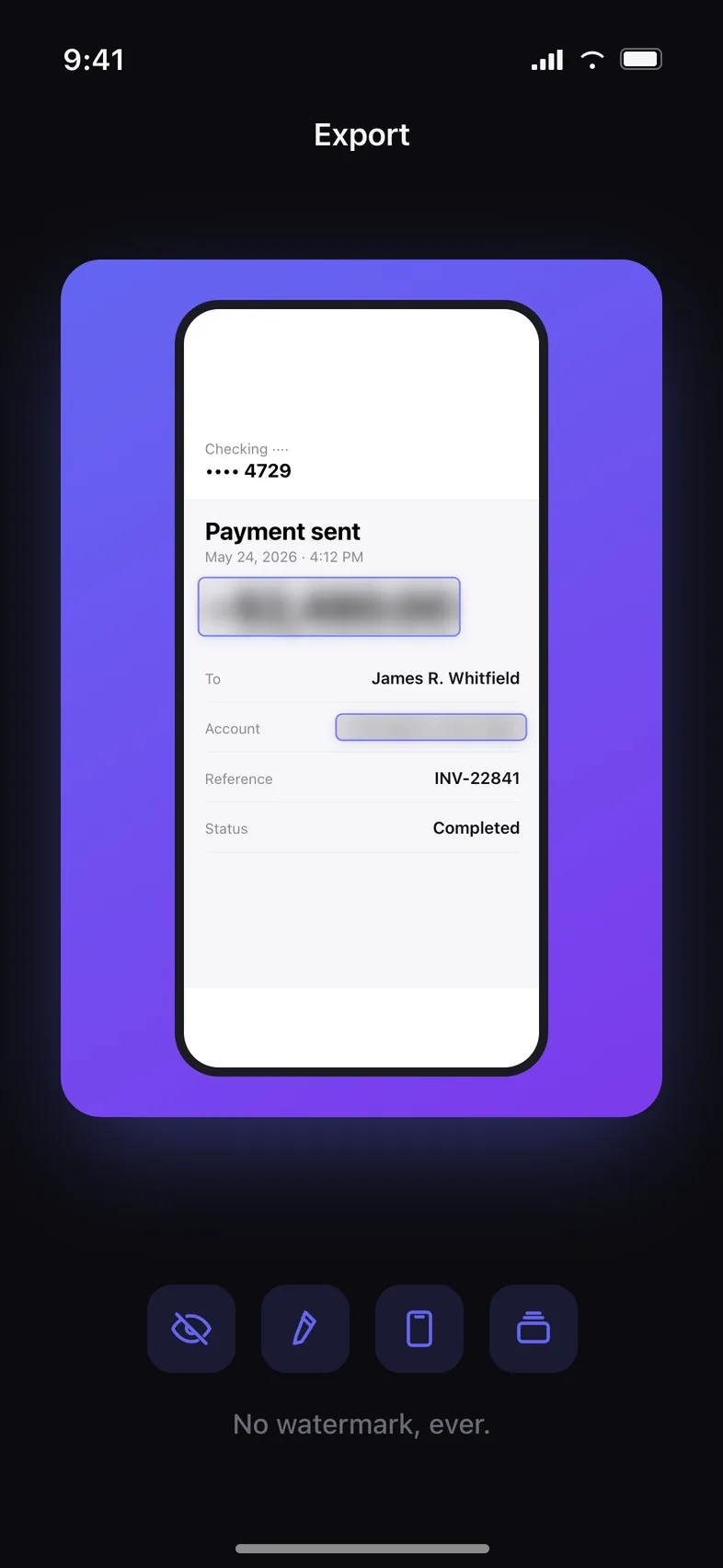
Full-quality export
PNG, JPG or a multi-page PDF, standard or high resolution, straight to Photos or the share sheet. Nothing is stamped onto your image unless you ask for it.
A clean status bar
Snaply can replace the top strip with a tidy one — full signal, full battery, no operator name and no exact time. It looks composed, and it also stops a screenshot about one thing from leaking when and where you took it.
Your signature, if you want one
Add your own name, handle or logo to a corner, at the size and opacity you choose. This is a signature you add — not a mark the app puts on free exports.
Everything in the toolbox
One editor, and nothing missing from it.
Screenshots say more than you meant them to.
Try it right here.
Drag across anything below to hide it — or let Magic find it for you.
- To
- James R. Whitfield
- Account
- 4021 8871 0034 4729
- Reference
- INV-22841
- Status
- Completed
0 areas hidden
Everything you just hid was hidden on your phone. Nothing was uploaded — the app works exactly the same way, on your own screenshots. Get Snaply
Three steps, every time
- 01
Pick a screenshot
from the app, or tap Share on the screenshot you just took and choose Snaply.
- 02
Hide, mark, compose
bar out what's private, point at what matters, drop it in a frame, a template or onto a background sized for where it's going.
- 03
Save or send
full-quality PNG, JPG or PDF to Photos or straight into the chat. Nothing added that you did not put there yourself.
What’s next
Being built now, in the open.
Record the scroll, skip the screenshots
Instead of taking six screenshots of a long page, let Snaply record the scroll itself and build one image from it — then redact and mark it up like any other shot.
Capture a whole web page
Paste a link and get the entire page as one image, top to bottom, without scrolling it yourself.
Hide the last screenshot in one tap
A widget on the Home or Lock Screen that takes your newest screenshot, bars out what Magic finds, and hands it back ready to send.
Put Snaply in a shortcut
Redact or stitch from Shortcuts and the Share menu without opening the app — one action in an automation you already run.
The same editor on a bigger canvas
An iPad layout with the toolbar where your hand is, and the same app on the Mac.
Show the joins on purpose
Torn edges and dividers between stitched screenshots, for when the seam should be visible instead of invisible.
The whole toolbox, unlocked
Snaply Pro opens the whole toolbox — every hide style, every annotation, every frame, template and stitch, and high-resolution export.
Start with a free trial in the app.
- Magic auto-redact and every hide style — blur, pixelate, blend
- Every annotation tool and shape, in any colour
- All device frames, backgrounds and shadow controls
- All 16 templates, across social, presentation, code and receipt
- Stitching long screenshots into one image, and slicing it back into parts
- Beautify backgrounds, padding, shadow and the social ratios
- A clean status bar, and your own signature in the corner
- High-resolution and multi-page PDF export — never with a mark of ours on it
Questions people ask first
No. Every edit — including Magic redact's text detection — happens on your iPhone, and your images are never sent to a server. Snaply has no account and no sync; the only thing that leaves the device is anonymous app usage and crash diagnostics, plus your purchase status.
Yes — a black bar is burned into the exported pixels, and what was underneath is gone. Blur and pixelation are different: Snaply labels them as partially reversible, because enough of the original signal can survive. When it really matters, use the black bar.
Yes. Editing, redacting, stitching and exporting all work in airplane mode, because nothing is processed remotely.
You can import a screenshot, cover things with a black bar, highlight, add arrows and text, and export at standard quality for free. Snaply Pro unlocks the rest of the toolbox — Magic redact, blur, pixelate and blend, all shapes and brushes, every device frame and background, all templates, stitching and slicing, beautify backgrounds, the clean status bar, your own signature, and high-resolution and PDF export. Current pricing is shown in the App Store and inside the app.
Snaply never adds one of its own — no badge, no “made with”, on any tier. There is a signature tool if you want your own name or logo on a corner, and it is off until you turn it on.
Any iPhone on iOS 17 or later. The interface is available in 11 languages — English, Russian, German, French, Spanish, Japanese, Simplified and Traditional Chinese, Korean, Brazilian Portuguese and Italian — and you can switch inside the app.
In the iOS Settings app under your Apple Account → Subscriptions, or from Manage Subscription inside Snaply. Cancelling at least 24 hours before the period ends stops the next renewal.
Email [email protected] and a human answers. Tell us the iPhone model and iOS version, and attach the screenshot if it's something you're comfortable sharing.